How to unsend a message on Instagram
To unsend a message on Instagram, tap and hold it, then tap Unsend. Here’s what the other person sees, and when to edit instead.
ManySetter teamUpdated 4 min read
On this page
Chapter 01Step by step
Unsend a message, step by step
In the iPhone or Android app, the steps are the same for text and voice messages:
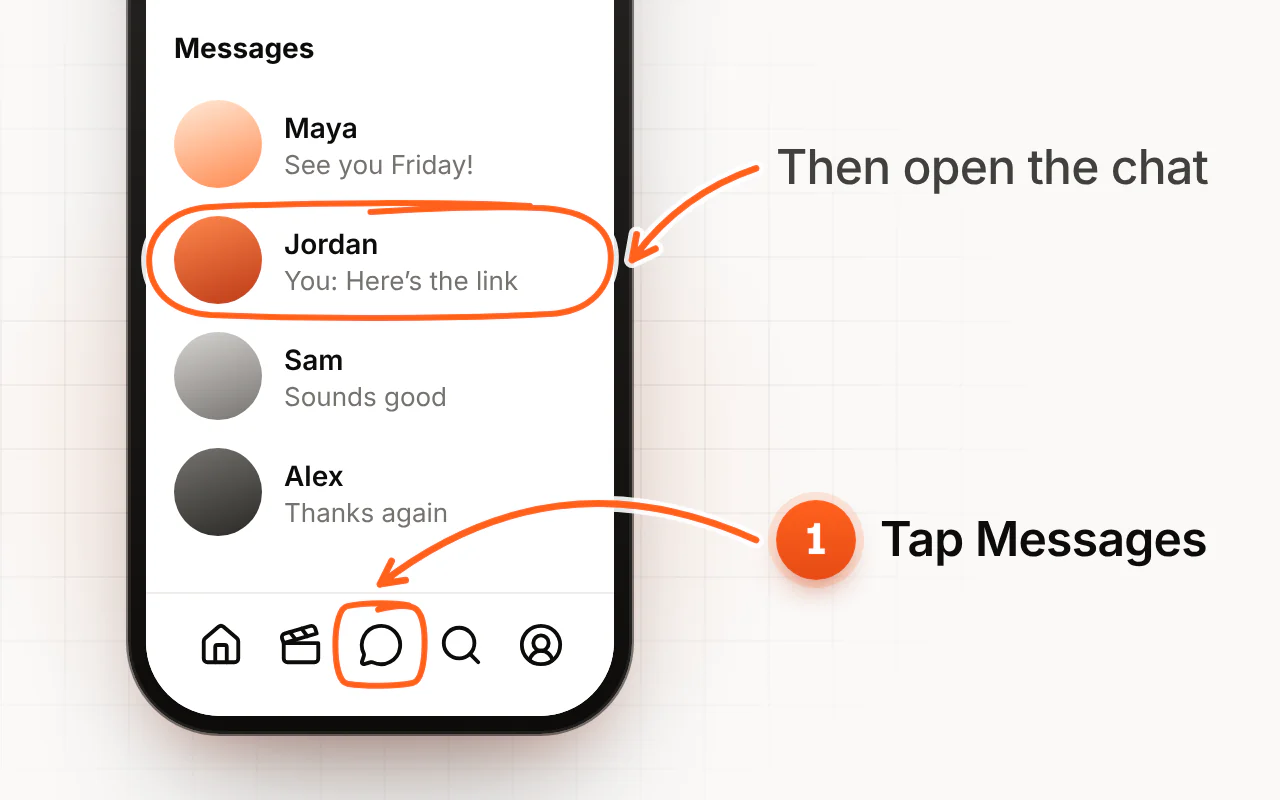
Open the chat
Where to click: Messages
Tap Messages at the bottom, then the conversation.
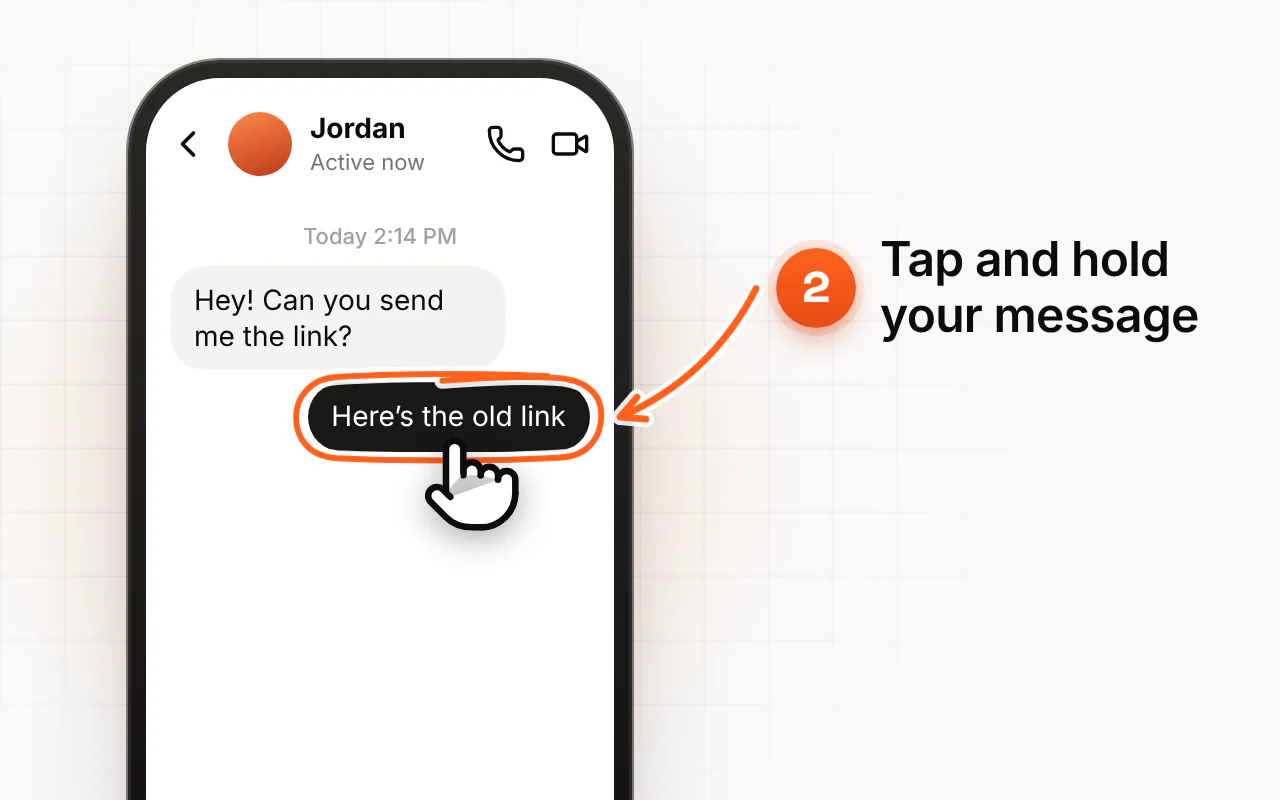
Tap and hold your message
Go to the message you sent, then hold it.
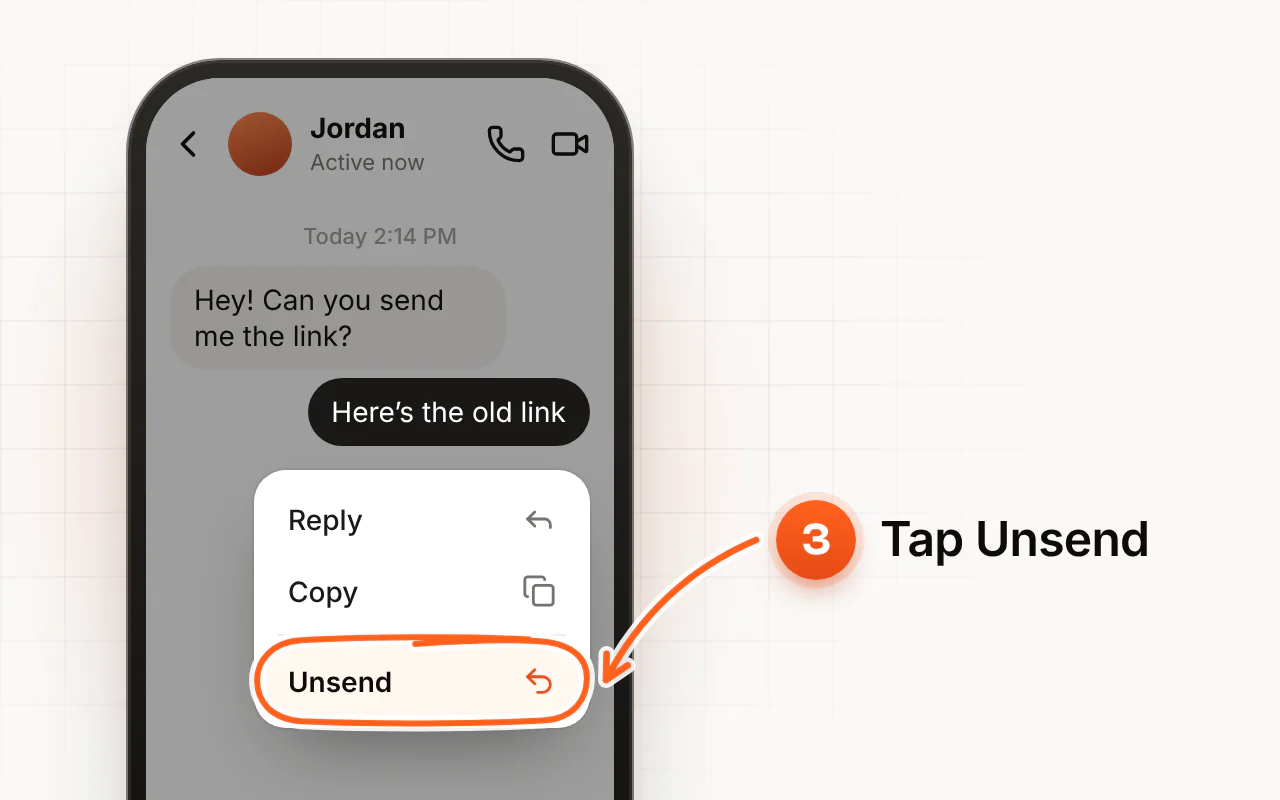
Tap Unsend
Where to click: Unsend
It’s no longer visible to anyone in the chat.
On a computer:
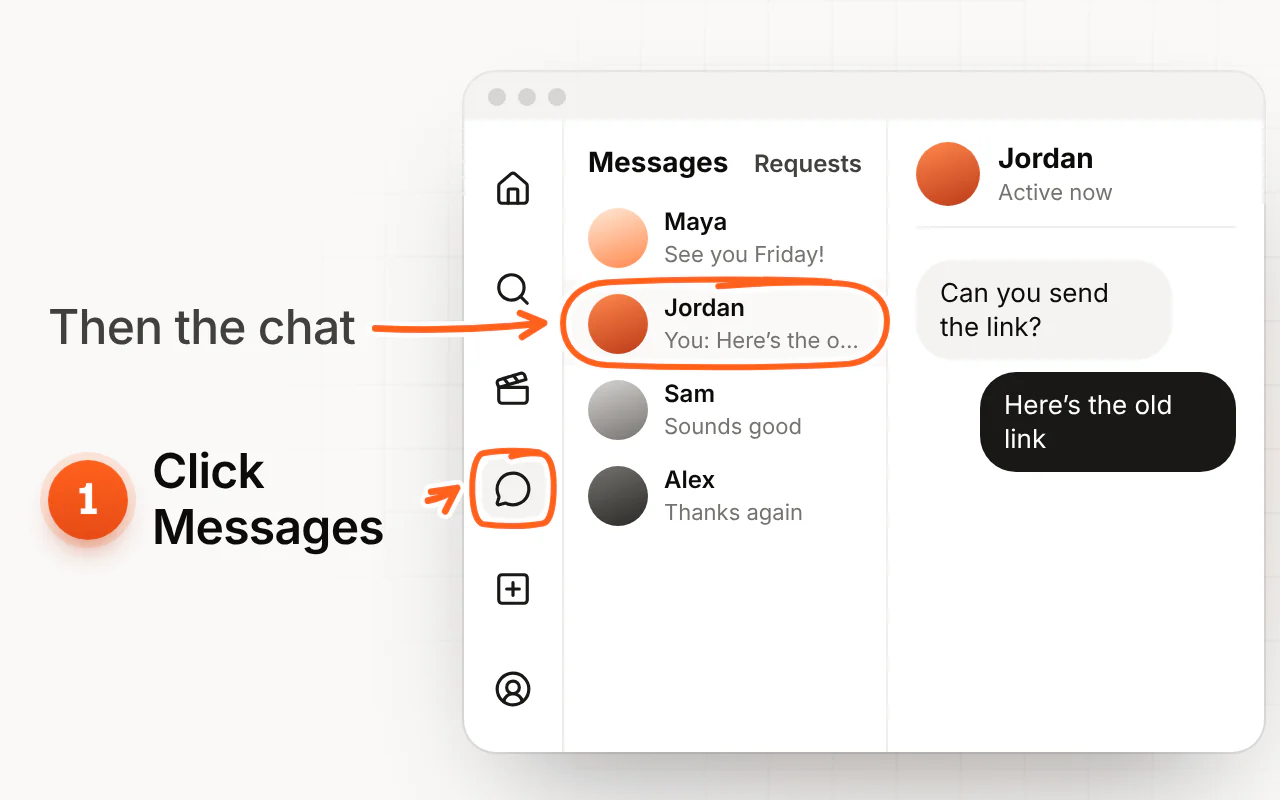
Open the chat
Where to click: Messages
Click Messages on the left, then the conversation.
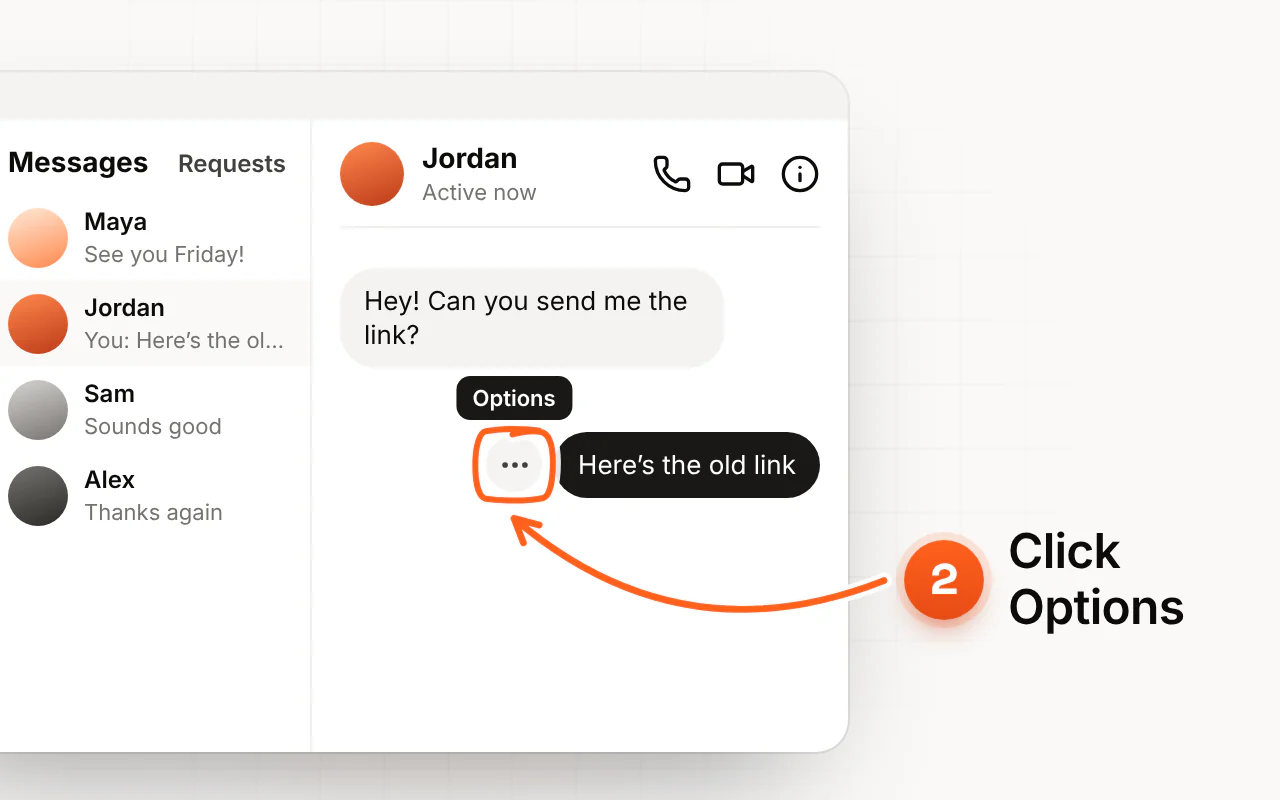
Open the message menu
Where to click: Options
Click Options next to the message you sent.
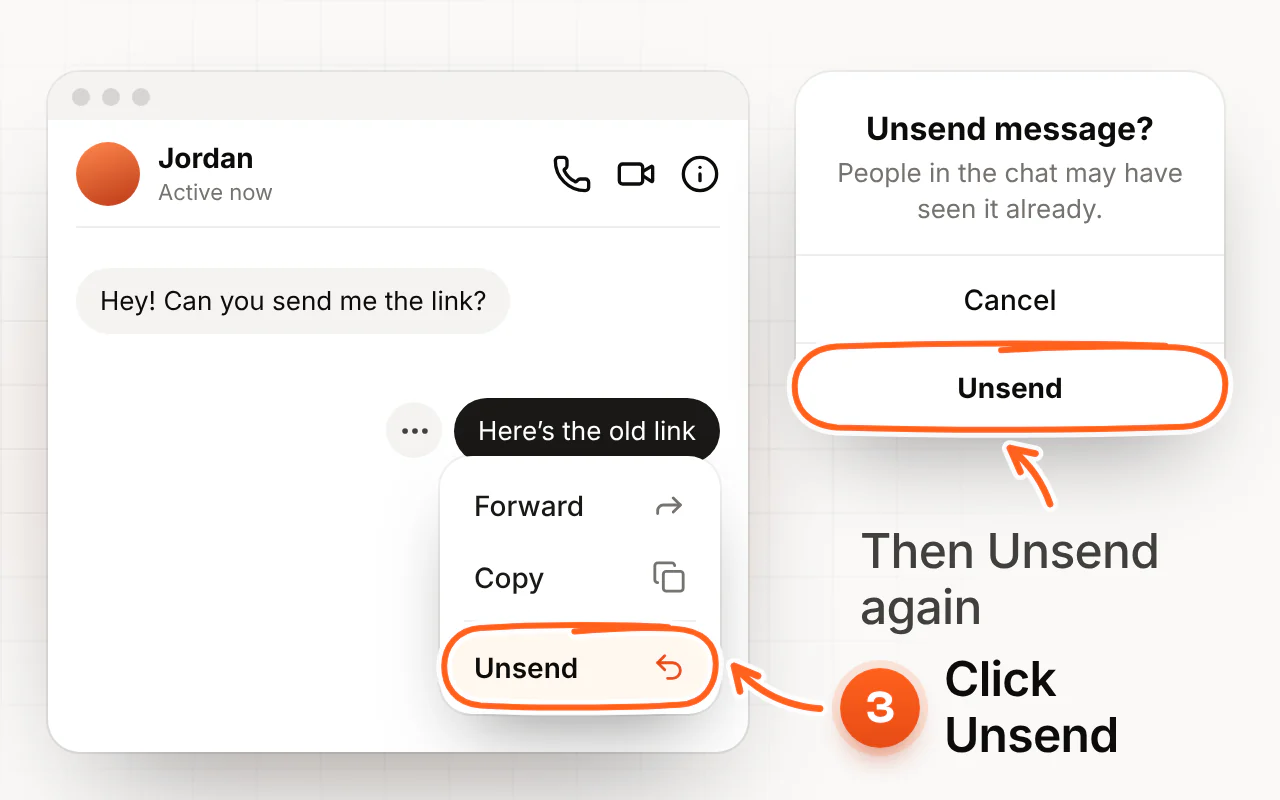
Unsend and confirm
Where to click: UnsendUnsend
Click Unsend, then Unsend again to confirm.
Deleting isn’t unsending
Delete for you removes a message only from your view. Others in the chat still see it, per Instagram Help (opens in a new tab).
Chapter 02The other side
What happens on their side
Here’s what Instagram Help says happens after you unsend:
| Question | What Instagram says |
|---|---|
| Does it disappear for them?What Instagram says: Yes. It’s no longer visible to people in the chat. | Yes. It’s no longer visible to people in the chat. |
| Could they have seen it?What Instagram says: Yes, if they read it before you unsent it. | Yes, if they read it before you unsent it. |
| Is there a time limit?What Instagram says: The unsend article names none. | The unsend article names none. |
| Are they told you unsent it? | Not documented |
| Is it in your data download?What Instagram says: No. Unsent messages aren’t in your Data Download file. | No. Unsent messages aren’t in your Data Download file. |
| Can it still be reported?What Instagram says: Yes. If the chat or a surrounding message is reported, it could be included. | Yes. If the chat or a surrounding message is reported, it could be included. |
Unsending isn’t erasing
They may already have read it. Unsend early, and don’t count on it to undo a message.
Chapter 03Choose
Edit, unsend or delete

Edit
- Best for
- A typo or a wrong detail, right after sending.
- Limits
- Up to 15 minutes and 5 edits. Edited shows above it. Not for messages with mentions.
- Choose it when
- The message should stay, just corrected.

Unsend
- Best for
- A message sent to the wrong chat, or one you regret.
- Limits
- They may have seen it already.
- Choose it when
- No one in the chat should see it anymore.

Delete for you
- Best for
- Clearing a message from your own chat view.
- Limits
- Others in the chat still see it.
- Choose it when
- You only want it gone from your screen.
Clearing a whole conversation instead? See how to delete Instagram messages and chats.
To edit, per Instagram Help’s edit article (opens in a new tab):
Hold a recent message
Tap and hold a message you’ve just sent.
Tap Edit
Where to click: Edit
No Edit option? The 15 minutes are up: unsend instead.
Send the fix
Where to click: Send
Change the text, then tap Send. Edited shows above it.
Edits can be seen too
Others may have read the first version. Unread notifications are replaced with the edited message.
Not sent yet? A scheduled message can be sent now, copied or deleted before it goes out: see how to schedule a message on Instagram.
ManySetter
Every DM lead, answered
An AI setter for Manychat: it answers the Instagram DMs your flows bring in, then books the call.
- Works inside your Manychat flows
- Replies from your offer, in your tone
- Books the call or hands off
Build and test free · Works with a Manychat account
Chapter 04Disappearing chats
Vanish mode: messages that disappear
Vanish mode sends messages, photos and videos that disappear when someone leaves the chat or turns it off, per Instagram Help (opens in a new tab). Unlike unsend, you choose it before you send.
Open a chat
Where to click: Messages
Tap Messages, then a chat with another Instagram account.
Swipe up
Swipe up in the chat to turn vanish mode on. Swipe up again to turn it off.
No copies
Messages can’t be copied, saved or forwarded.
Screenshots
Still possible. Instagram notifies you if it detects one.
Not everywhere
May be unavailable in Japan and Europe. One-to-one chats only.


Disappearing messages
In some locations, Instagram offers disappearing messages: they last for a duration you choose, and don’t work in group chats. More in our Instagram vanish mode guide.
Chapter 05Fix
If Unsend or Edit is missing
Hold a message you sent, not one you received. On a computer, click Options next to it first.
Edits close 15 minutes after sending, or after 5 edits. You can still unsend the message.
Messages with mentions or commands can’t be edited. Unsend it, then send a new one.
Instagram Help lists editing for iPhone, iPad, computers and Instagram Lite, and says it isn’t in the Android app.
It works only with another Instagram account, may be unavailable in Japan and Europe, and some professional accounts can’t receive it.